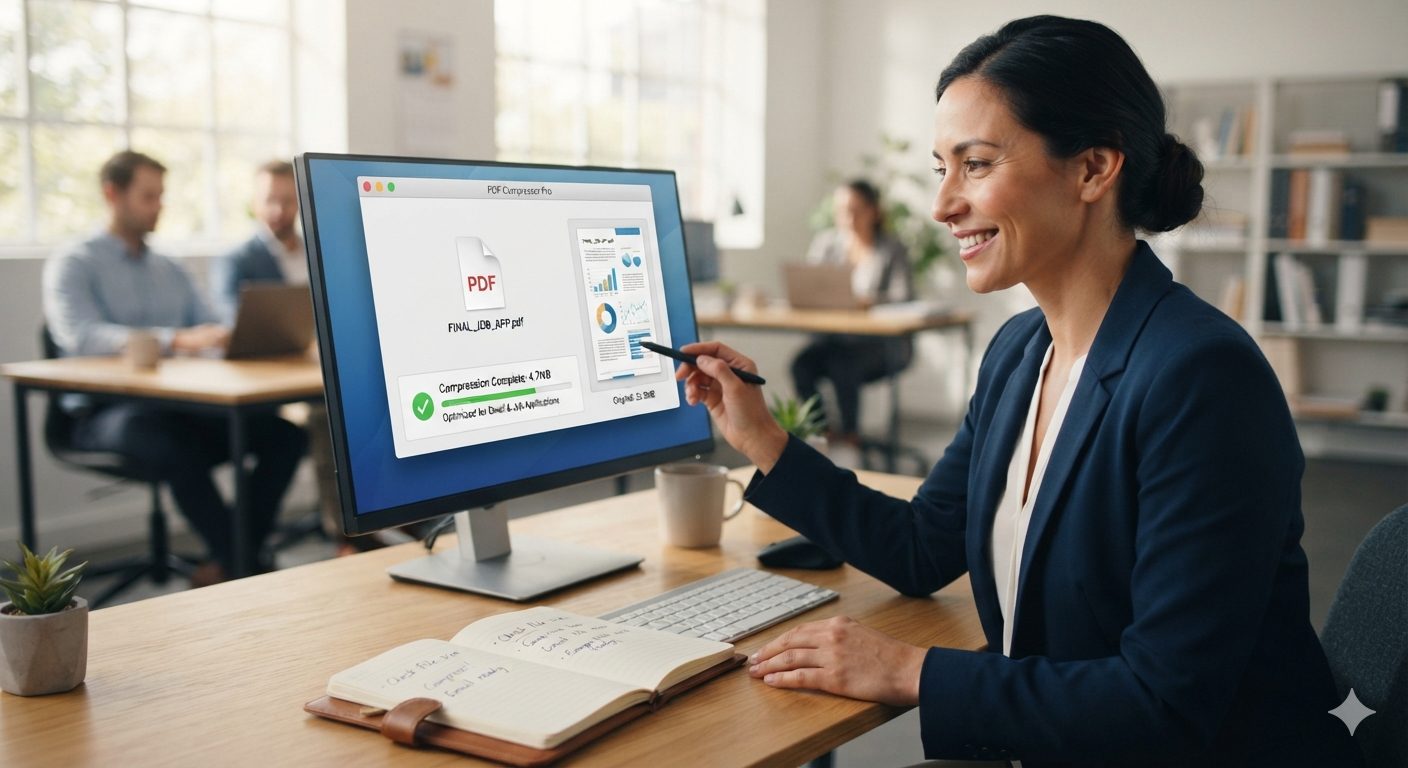
The Low setting stays close to lossless: it cleans up file structure and re-encodes images conservatively, so the size reduction is modest but nothing looks different. Recommended applies more noticeable compression to embedded images while staying visually clean on a screen, and covers most everyday cases, an email attachment that is slightly too big, a form that needs to fit an upload limit. Extreme pushes compression hard and produces the smallest file, at the cost of visible softness in images if you look closely, which is the right tradeoff when file size is the only thing that matters and the document is disposable or informal.
Under the hood, compression mostly comes down to three things: images get resampled to a lower resolution and re-compressed, duplicate fonts and unused objects get stripped out of the file structure, and metadata you never see gets removed. None of this touches the actual text in your document. Text stays as text, not an image, so the compressed file is still searchable and selectable exactly as before.
This gets used constantly for practical, unglamorous reasons: getting a scanned contract under an email attachment limit, shrinking a portfolio PDF so it actually uploads to a job application form, or reducing a stack of scanned receipts before archiving them. Anywhere a file size limit is the actual blocker, rather than a matter of preference, this is the tool for it.
One honest caveat: if a PDF is already mostly text, a report, an invoice, a contract with no scanned pages or embedded photos, compression will not do much, because there is not much to squeeze. The size savings here come almost entirely from images. A 40-page scanned book will shrink dramatically; a 3-page text-only invoice mostly will not, and that is expected, not a sign that something went wrong.
If you are aiming for a specific number rather than just "smaller", here is a rough guide. A scanned document with a handful of pages usually clears 500KB on Recommended without much visible change. Government portals, visa applications, and some job boards commonly cap uploads at 200KB or 100KB, and those thresholds usually need Extreme, sometimes combined with splitting a long document into smaller pieces first. There is no way to guarantee an exact byte count since it depends entirely on what is inside the file (a page of text costs almost nothing, a page of high-resolution scans costs a lot), but these are realistic starting points before you try.
If you are about to merge several files and the combined result needs to hit a size limit, compress after merging, not before. Compressing each file individually first and then merging them tends to leave you slightly over budget, since the combined overhead of several separately-compressed files is marginally higher than compressing the one final document. Merge first, then compress the result, and you get a cleaner number.
This tool queues larger files rather than making you wait on a frozen page. You will see a status update, queued, then processing, then a link to download once it is ready, instead of just staring at a spinner with no sense of whether anything is actually happening. Most files clear the queue in a few seconds; a genuinely large scanned document might take a little longer, and that is normal.
Compression runs the same way on a phone browser as it does on a desktop, which is worth knowing if the file you need to shrink is already sitting on your phone, a scanned form you photographed, a PDF someone sent you over messaging that will not attach to an email at its current size. There is no separate mobile version and nothing to install either way.