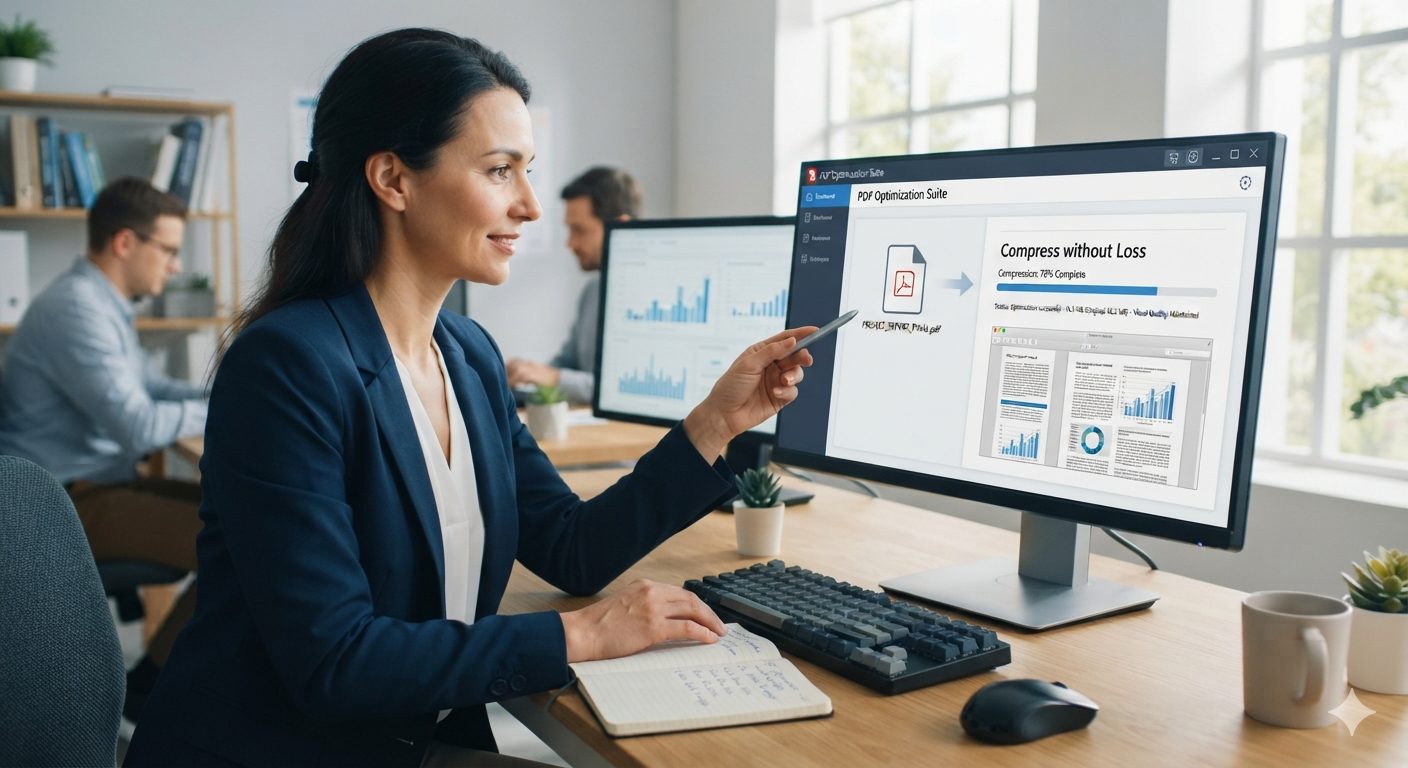
Most people assume compressing a PDF means accepting worse quality, the same tradeoff as re-saving a JPEG at a lower setting. That is true at the extreme end, but most of what a compressor actually does has nothing to do with how sharp your document looks. Here is what is actually happening when a PDF gets smaller, and how to hit a specific size target without guessing.
What actually takes up space in a PDF
A PDF is really a container holding a few different kinds of data: the text itself, fonts, images, and structural information the format needs to lay everything out. Of those, images are almost always the overwhelming majority of the file size. A page of plain text costs a few kilobytes at most, no matter how many words are on it. A single scanned page, photographed or run through a scanner at a decent resolution, can easily cost a megabyte or more on its own.
This is why a 3-page invoice and a 3-page scanned form can be wildly different sizes even though they have the same page count. The invoice is almost entirely text. The scanned form is almost entirely one large image per page. Compression targets that second category, and it is worth knowing which one you are dealing with before you expect a dramatic size drop.
What compression actually changes
A compressor works on three things: it resamples embedded images down to a lower resolution and re-encodes them, it strips out duplicate fonts and unused objects left over from however the PDF was created, and it removes metadata you never see in the first place. None of that touches the actual text. Text in a well-formed PDF stays as real, selectable text through the whole process, it does not get flattened into an image or degraded in any way.
The visible tradeoff, if there is one, shows up entirely in images: a scanned page compressed hard enough can look slightly softer if you zoom in, the same way a JPEG saved at a lower quality setting does. At moderate settings this is not something you would notice on a screen. At aggressive settings, chasing the smallest possible file, it becomes a real tradeoff you are making on purpose, not an accident.
Picking a target size instead of just "smaller"
A lot of the time, "compress this" is not really the goal. The actual goal is a specific number: an email provider that rejects attachments over 25MB, a job application portal capped at 5MB, a government form that wants under 1MB, or an upload field that will not accept anything over 200KB or 100KB. Those last two show up constantly and catch people off guard, since 100KB is small enough that even a modest scan can blow past it.
As a rough guide: getting a short scanned document under 500KB is usually a Recommended-level compress, no visible difference on screen. Under 200KB or 100KB, the common caps on visa and government portals, usually needs the more aggressive setting, and if the original document has several high-resolution photos in it, you may also need to split it into smaller pieces or address the source images before you even convert to PDF. There is no way to promise an exact byte count in advance, since it depends entirely on how much image data is actually inside the file, but these are realistic starting points before you try rather than guessing blind.
When compression will not help much
If your PDF is mostly text, a contract, an invoice, a report with no scanned pages or embedded photos, do not expect a dramatic size drop. There simply is not much to compress. This trips people up because they assume every PDF responds to compression the same way a photo does. A 40-page scanned book will shrink substantially. A 3-page text-only letter will barely move, and that is expected behavior, not a sign the tool failed.
If you are merging several files before hitting a size limit, compress after merging rather than before. Compressing each file separately and then combining them tends to leave you slightly over budget compared to merging first and compressing the single combined result.
A quick checklist before you compress
- Know what is actually in the file. Mostly images means compression will help a lot. Mostly text means it will not do much, and that is fine.
- Check the actual limit you are working against before picking a setting. Guessing "medium" without a target number wastes a step if you end up needing to redo it at a more aggressive level.
- If you need a specific small size, like 100KB or 200KB, start with the more aggressive preset rather than working up from the lightest one.
- Merge first, compress second, if you are combining multiple files and the final size matters.
The short version: compression is not a single dial between "small" and "good quality." It is mostly about images, it mostly leaves text alone, and knowing which category your document falls into tells you what to actually expect before you start.