Both JPG and PNG are accepted, and you can mix them in the same conversion, since the tool does not care what format each individual page started as. PNG to PDF specifically is worth calling out: PNG tends to be the better source for anything with sharp text or line art (screenshots, scanned forms with fine print), since it is lossless to begin with, so converting it keeps every pixel exactly as it was. JPG is usually fine for photos, where the file is already lossy and a PDF wrapper does not add to that. Either way, the image data going in is the image data that ends up in the PDF; there is no intermediate re-encoding step that would introduce new compression artifacts. If you want the full breakdown of what actually affects image quality during conversion, and what does not, this post covers it in more depth.
Order matters more than people expect when you are combining several images into one document. Most file pickers select images in the order you click them, which is reliable if you click carefully, less so if you are selecting a whole folder at once. That is what the reorder arrows are for: fix the sequence after upload rather than re-selecting files from scratch. If you are specifically photographing pages with a phone camera and combining them here, this guide covers getting the photos themselves right before you even get to this step.
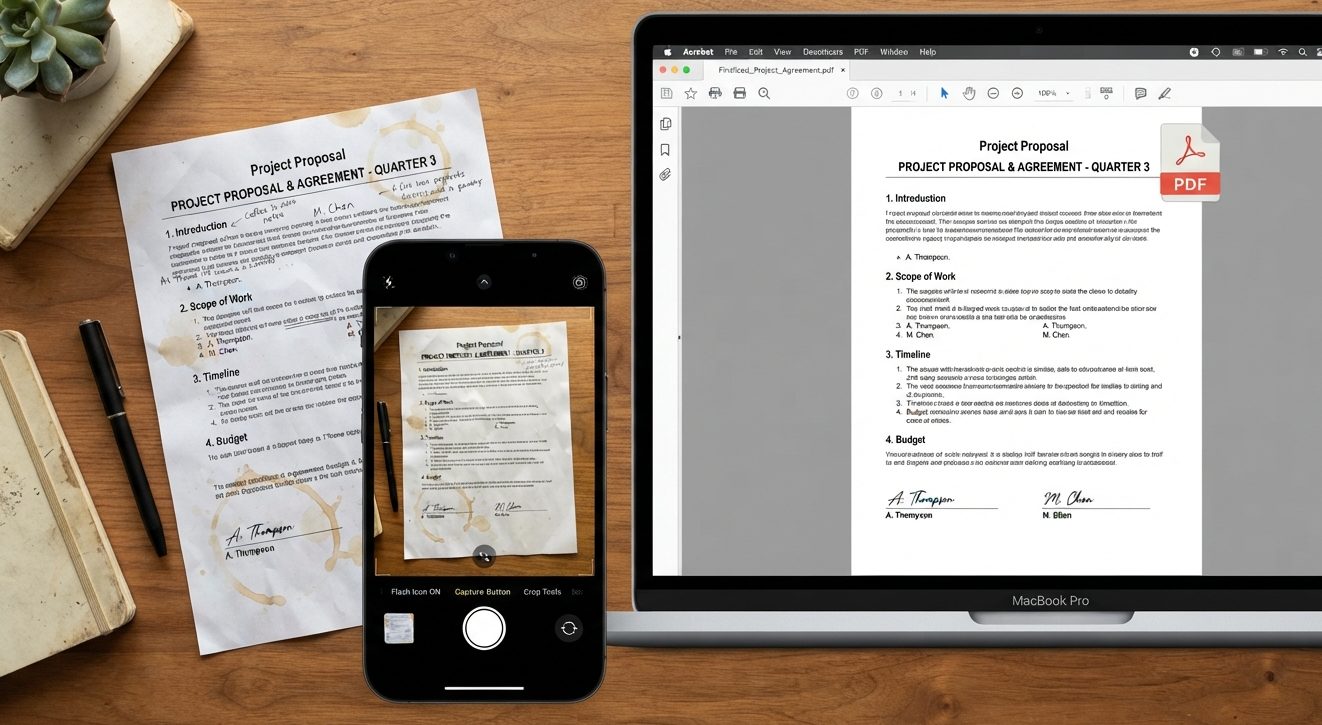
The two most common reasons people land on this tool: turning a phone camera into a makeshift scanner for a form, receipt, or ID that needs to go somewhere as a PDF rather than a folder of photos, and combining a set of product or reference photos into a single shareable document instead of a batch of separate image files. Both cases benefit from the same thing, getting the source images reasonably clean and correctly cropped before conversion, since the tool preserves what it is given rather than correcting it.
This works the same way on a phone as it does on a desktop, which matters since most people photographing a document to convert are doing it from an iPhone or Android phone in the first place, not sitting at a computer with a scanner. There is nothing to install on either platform: open the page in your phone's browser, select photos straight from your camera roll, and the conversion runs the same way it would from a laptop.
A single JPG or PNG converts just as well as a batch of thirty. If you only have one image, the tool still wraps it into a proper one-page PDF, which comes up more often than you would expect, submitting a single signed page, a screenshot, or a certificate as a PDF because that is what a form specifically asks for, even though what you actually have is one image file.
For anything you plan to archive rather than send once and forget, PNG is worth the slightly larger file size. It will not degrade further no matter how many times the resulting PDF gets copied, backed up, or reopened later, which matters more for something like a scanned certificate or an ID you might need again in five years than it does for a receipt you are forwarding once this afternoon.